
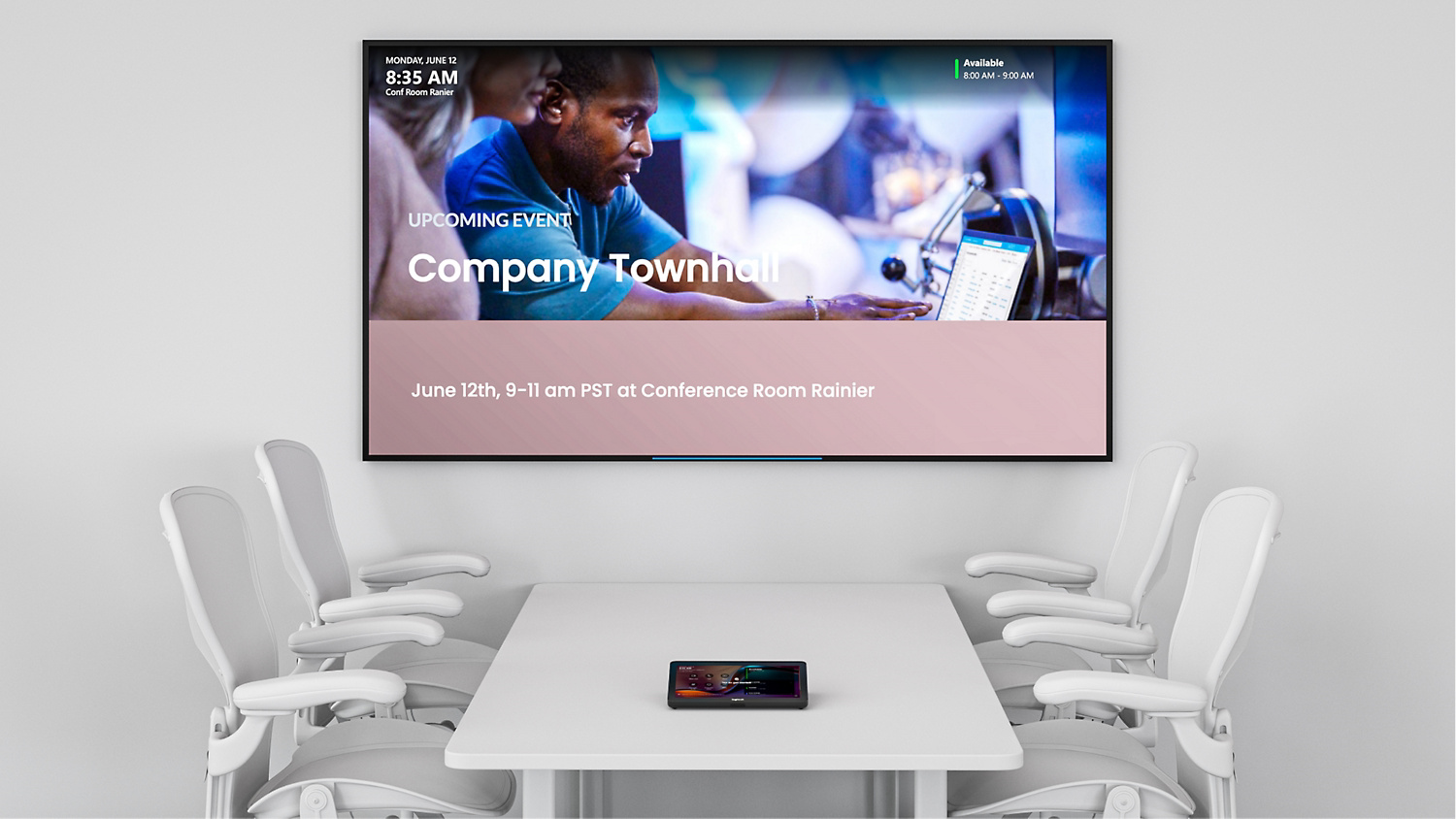
Looking through the “Packages and Systems” that Microsoft showcases on their website, it’s easy to see how expensive their recommended solutions can be. Just the cameras can run from $800 upwards, with some of the more “complete” looking solutions pushing into five figures. Whatever that is in GBP, it’s a lot – numbers that big tend to stay big.
I wanted something that not only served its purpose but looked the part too, and worked reliably. I didn’t want to be troubleshooting and fixing things every time someone had a meeting to join – so that was my first requirement.
The second requirement was cost. I didn’t want to drop tens of thousands of pounds on what is essentially a computer running a conference app with a webcam. Imagine spending £10,000 on a laptop just to run Teams or Zoom – that’s my thinking.
The third and final requirement was aesthetics. It didn’t need to be gold-plated, but it had to look smart. If a client saw it, I didn’t want them knowing any different – we’re reliable, and we want as much value as possible for what we spend, just like they do.
The Hardware
After carefully picking up components from various marketplaces and Amazon, here’s what I put together:
- Dell Micro 3050 (i5 7500T, 16GB RAM, 512GB SSD) – ~£170 (Amazon)
- Sony Bravia 49″ 4K TV – ~£180 (Facebook Marketplace)
- Logitech Brio 100 Webcam – ~£30 (Amazon)
- Logitech Tap (or any secondary display) – ~£100 (eBay)
This setup was methodically chosen to balance cost, performance, and aesthetics—e.g., selecting a slim TV that could sit close to the wall without the need for wall mounting.
Step 1: Creating the Room in Microsoft 365
- In the Microsoft 365 Admin Centre, navigate to:
- Exchange Admin > Recipients > Resources
- Click “+ Add new room resource”
- Fill out the “New Resource Mailbox” wizard:
- Give your room a name (e.g., “Meeting Space”)
- Assign an appropriate email address
- Configure booking preferences and capacity
Step 2: Assigning a Licence
- In the Microsoft 365 Admin Centre, go to:
- Settings > Billing
- Click “Add More Products”
- Search for “Microsoft Teams Rooms Basic” (free licence)
- Assign the licence:
- Go to Users > Active Users
- Find your “Meeting Space” user
- Open the “Licences and apps” tab
- Select the Microsoft Teams Room licence and save changes
- Set up a password:
- In the user’s profile, click “Reset Password”
- Uncheck “Automatically create a password”
- Set a secure password
Step 3: Hardware Setup
- Connect the TV to the PC via HDMI
- Connect the Logitech Webcam to a USB 2.0 port
- Use a wireless keyboard and mouse for convenience
- Use a wired Ethernet connection for stability (WiFi works if needed)
Step 4: Configuring the PC
- Log into the Dell 3050 using your Microsoft 365 account
- Install Windows updates (if needed)
- Create a local user account:
- Name it “Teams”
- Temporarily set it as an administrator
- Switch to the “Teams” account and download the Microsoft Teams Room app:
- Microsoft Teams Room App
- Set up a Windows Hello PIN for convenience
- Configure Teams Rooms XML settings:
- Log out and back into your main accountCreate a
skypesettings.xmlfile with the following:
- Log out and back into your main accountCreate a
<SkypeSettings>
    <UserAccount>
      <SkypeSignInAddress>[email protected]</SkypeSignInAddress>
        <ExchangeAddress>[email protected]</ExchangeAddress>
        <Password>YourSecurePassword</Password>
    </UserAccount>
</SkypeSettings>- Save it to:
C:\Users\Teams\AppData\Local\Packages\Microsoft.SkypeRoomSystem_8wekyb3d8bbwe\LocalState - Change the Teams user account back to standard (not admin)
Step 5: Final Setup
- Power everything off and connect the second display (if using one)
- Power everything back on and log into the Teams account
- Done! You now have a Microsoft Teams Room setup for just over £450 instead of £10,000+
Troubleshooting
- If the interactive Teams interface appears on the TV instead of the secondary display, go to Windows Settings and ensure the TV is not set as the primary display.
This setup balances cost, reliability, and aesthetics, proving that you don’t need to break the bank for a professional-looking Teams Room solution!